

Zelle® should only be used to send or receive money with people you know and trust. Before using Zelle® to send money, you should confirm the recipient's email address or U.S. mobile phone number. Neither PNC nor Zelle® offers purchase protection for payments made with Zelle® – for example, if you do not receive the item you paid for, or the item is not as described or as you expected. To send or receive money with Zelle®, both parties must have an eligible checking or savings account at a participating financial institution in the U.S. Transactions typically occur in minutes between enrolled users. If the recipient has not enrolled, the payment will expire after 14 calendar days. See the PNC Zelle Terms of Use for additional terms and conditions. Use of Zelle® is subject to and conditional upon adherence to the terms and conditions of the PNC Zelle® Terms of Use.
YubiKey
Authentication devices
to help you get online.
About YubiKey
A YubiKey is a hardware authentication device that protects your access to Online Banking.
We're making changes to our Online Banking site that will require our customers to use a one-time passcode (OTP) to sign on. After you successfully sign on, certain actions you can take like changing your mailing address will also require that you complete a one-time passcode.
For customers who can’t receive an OTP, we offer YubiKey as an alternative method of identity authentication to sign on to Online Banking.
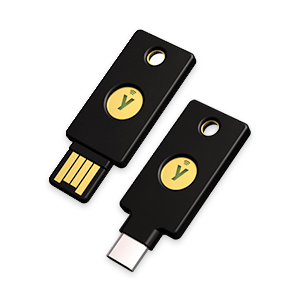
What to Expect
You've previously notified PNC that you are unable to receive a one-time passcode, so we will send you two Yubikeys for identity authentication. You only need one Yubikey at a time for authentication. We've provided two in case one is misplaced or damaged. If your situation has changed and you're now able to receive an OTP, contact us.
Once you receive your YubiKeys, you’ll need to register them both at https://secure.pnc.com/security-key/. To complete registration, you'll need the Yubikey, your Online Banking user ID, your Online Banking password, and your PNC debit card. Designate a unique name for each device, so you can tell them apart.
After you register them, you’ll be prompted to insert a YubiKey to authenticate each time you access Online Banking.
Keep your YubiKeys in a safe, secure location.
It's important to note that you cannot use a YubiKey to access the PNC Mobile app. If you wish to access your account information on your mobile device, you'll need to access pnc.com from a browser on your mobile device.
Frequently Asked Questions
- There are no batteries or cellular network connectivity required.
- They are crush-resistant and water-resistant.
- They don’t need to be ejected; you can remove your device from the USB port at any time.
- Each YubiKey is associated with one unique PNC User ID – they can’t be shared.
A debit card is required to set up a YubiKey. You can find a branch or call 1-800-762-2035 to request one.
Windows and Android devices: There’s no preferred browser, any should work.
Mac and iOS devices: We recommend you use Safari.
You'll need to be able to authenticate yourself with a One-Time Passcode (OTP). One-Time Passcodes can be provided to a cell phone via voice or text, or a landline via voice.[1]
If you can authenticate yourself via a One-Time Passcode (OTP) sent to a landline or a mobile device, please contact the PNC Care Center at 1-800-762-2035 and inform them that you do not need a YubiKey.
You’ll want to give each YubiKey a different name, so you can tell them apart.
There’s no minimum length, and the maximum length is 20 characters (letters and numbers only).
If you need to view or change your device’s name:
- In Online Banking, select the profile and settings icon in the upper right corner.
- Select Security and Access, then find YubiKey Verification.
- Select Edit. A window will pop up that allows you to change your device’s name.
- Enter the new name and select Done.
No, each YubiKey is associated with a unique PNC user ID. For joint accounts, the other account owner(s) will need to set up a YubiKey with their user ID.
The sensor on the YubiKey only detects your touch. It does not read your fingerprint.
You can use your YubiKey with your mobile phone once you have completed the YubiKey registration. You can tap your YubiKey against your phone if it is Near Field Communication (NFC) compatible. Otherwise you will need to insert your YubiKey into the USB-C port on your mobile phone. Please review your phone model's specifications to learn more.
Please note that you use can use Online Banking through your mobile browser. At this time, a YubiKey is not compatible with the PNC Mobile app.