




Read a summary of privacy rights for California residents which outlines the types of information we collect, and how and why we use that information.
Follow These Steps to Re-Enroll as a Delegate In Your New Online Banking Experience
Re-Enroll as a PNC Small Business Delegate
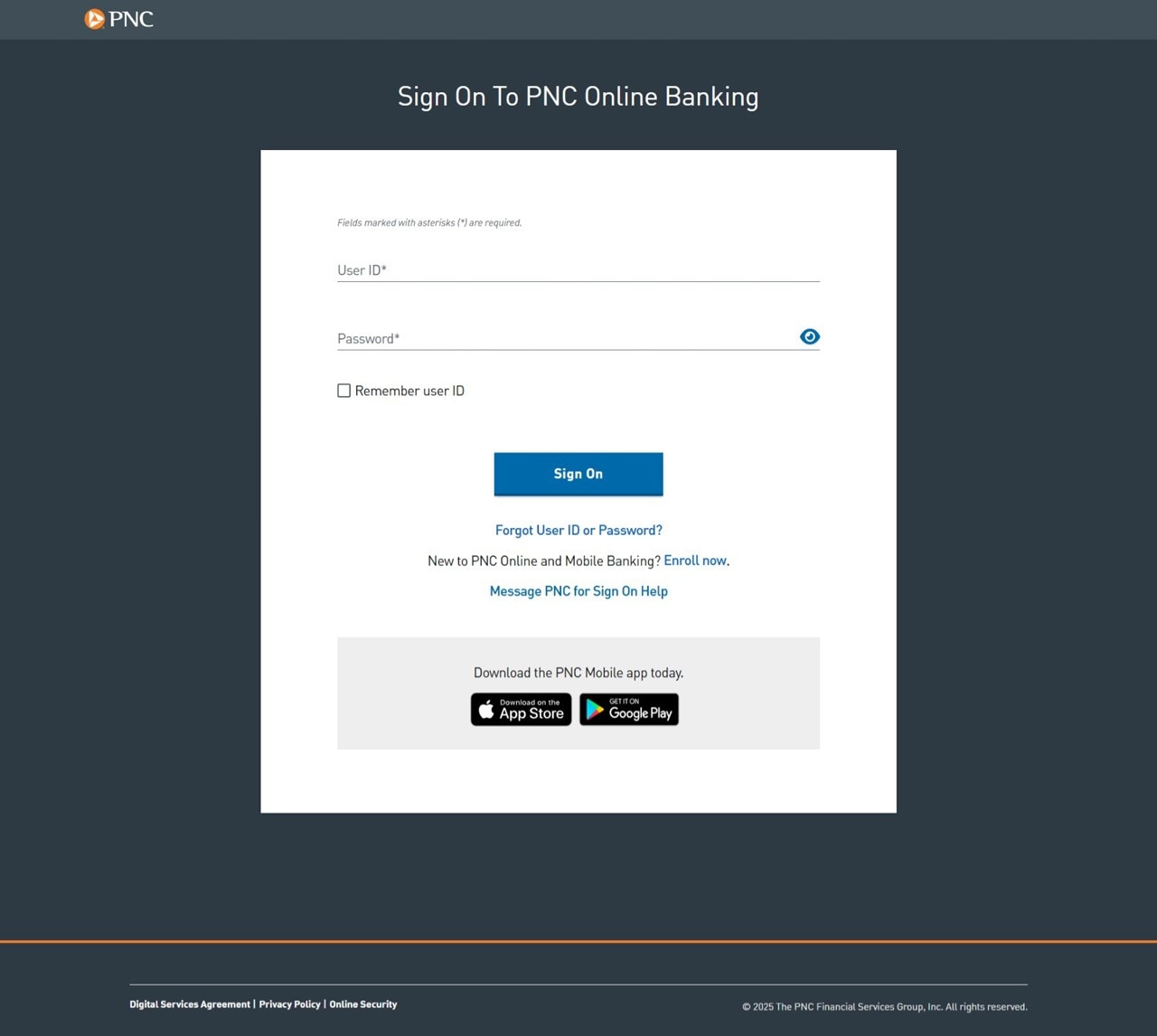
Step 1: Sign On
- Sign on with your current user ID and password - your user ID starts with the $ character.
- Select Sign On.
Note: This process is for re-enrollment. If the account owner has added a new delegate they will need to generate and provide an enrollment code to the delegate user.
Re-Enroll as a PNC Small Business Delegate
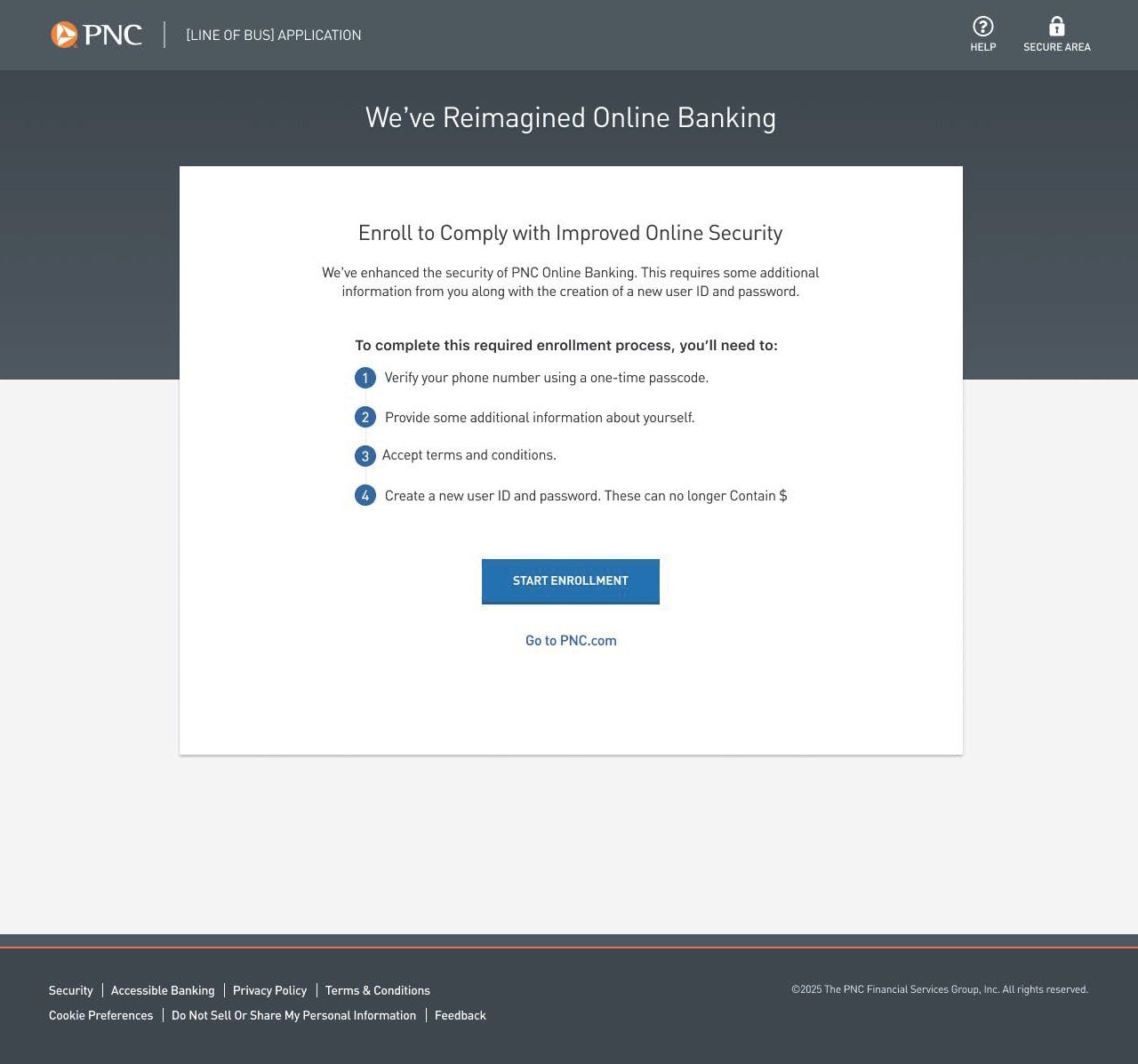
Step 2: Start Enrollment
You'll see instructions outlining how to complete the required enrollment process, you'll need to:
- Verify your phone number with a One Time Passcode.
- Provide additional information about yourself.
- Accept terms and conditions.
- Create a new user ID and password - your user ID can no longer contain $.
Select Start Enrollment.
Re-Enroll as a PNC Small Business Delegate
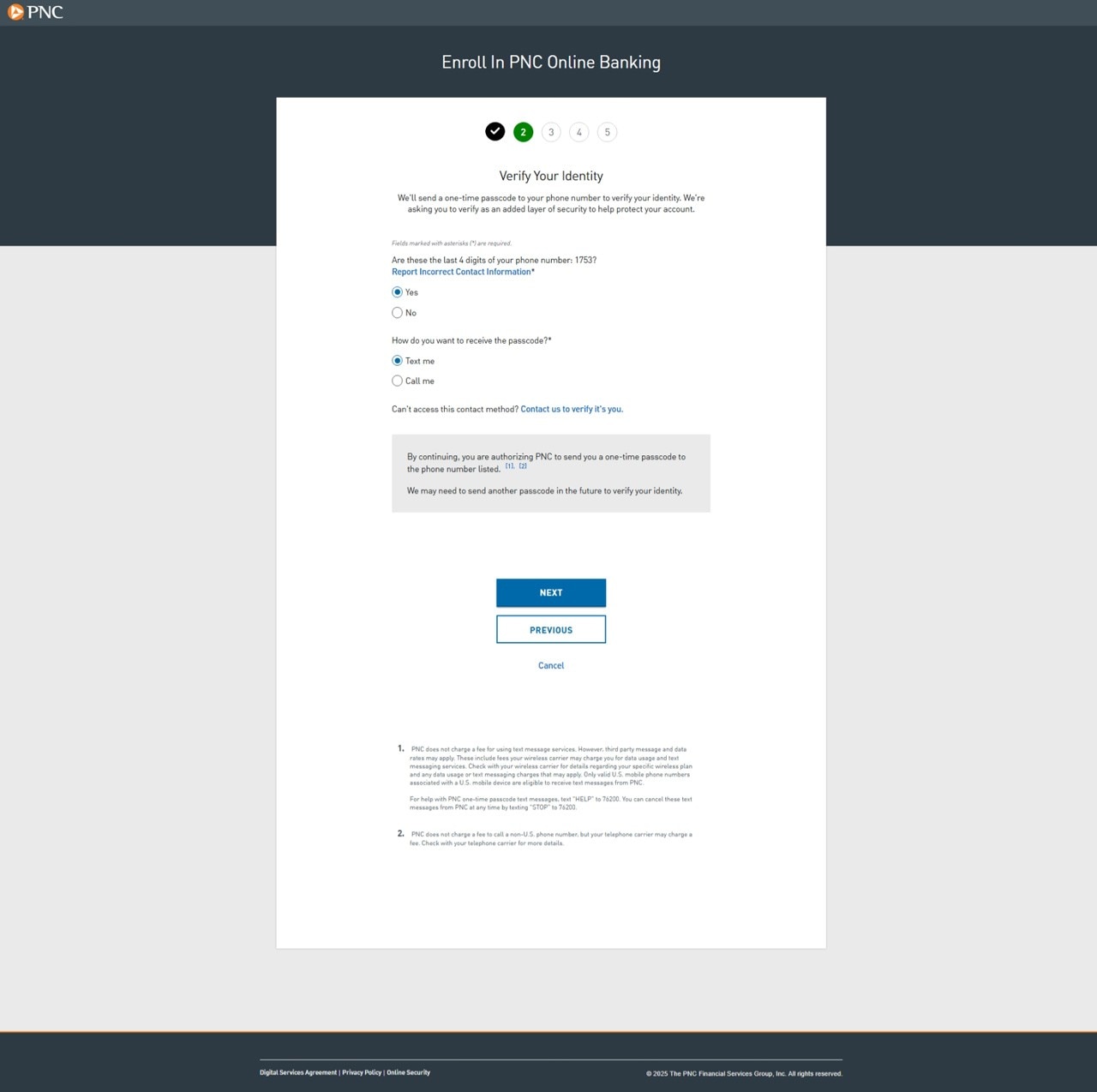
Step 3: Verify Your Identity with a One Time Passcode
- Answer question - Are these the last 4 digits of your phone number?
- If yes, choose how to receive a passcode, via text or call.
- Select Next.
Note: If this is inaccurate select 'no', the account owner will be notified to update their delegate's contact information. Please also ask the account owner to update this information. This needs to be completed to successfully enroll. Account owners can update delegate’s phone numbers in OLB by clicking the Profile Icon in the top right corner of the online banking screen and accessing the Security and Access. Click Update Contact Information to update the delegate’s name, email, or phone number.
Re-Enroll as a PNC Small Business Delegate
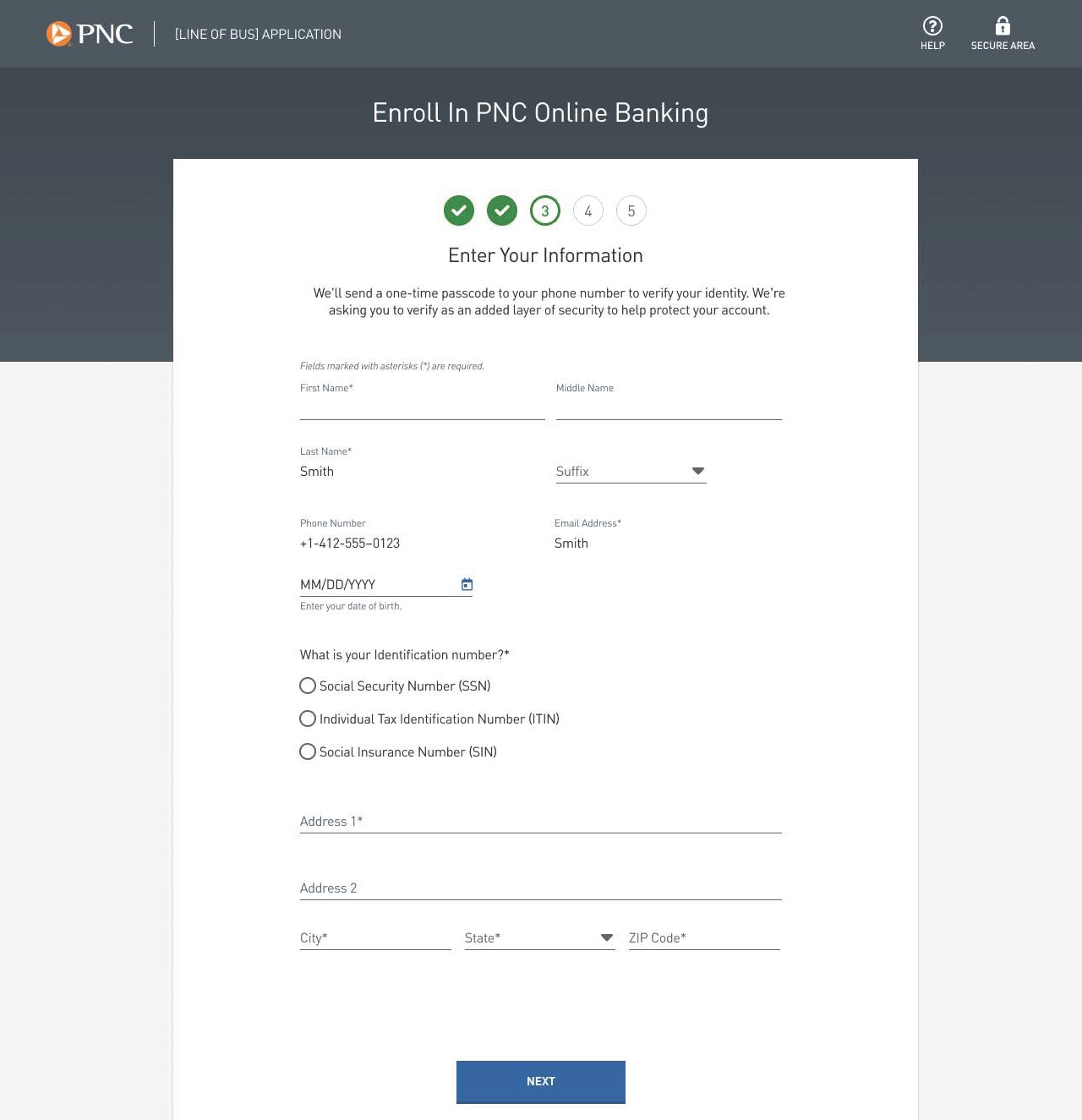
Step 4: Enter Personal Information
Delegates will need to enter their personal information:
- First & last name
- Phone number
- Email address
- SSN/ITIN/SIN number
- Address
Then select Next.
Note: Delegate's personal information must match what was already in the system for this process to work. The account owner will have to update information if necessary.
We are requiring delegates personal information moving forward as a security enhancement and fraud prevention measure. PNC will not use this information for marketing purposes.
Re-Enroll as a PNC Small Business Delegate
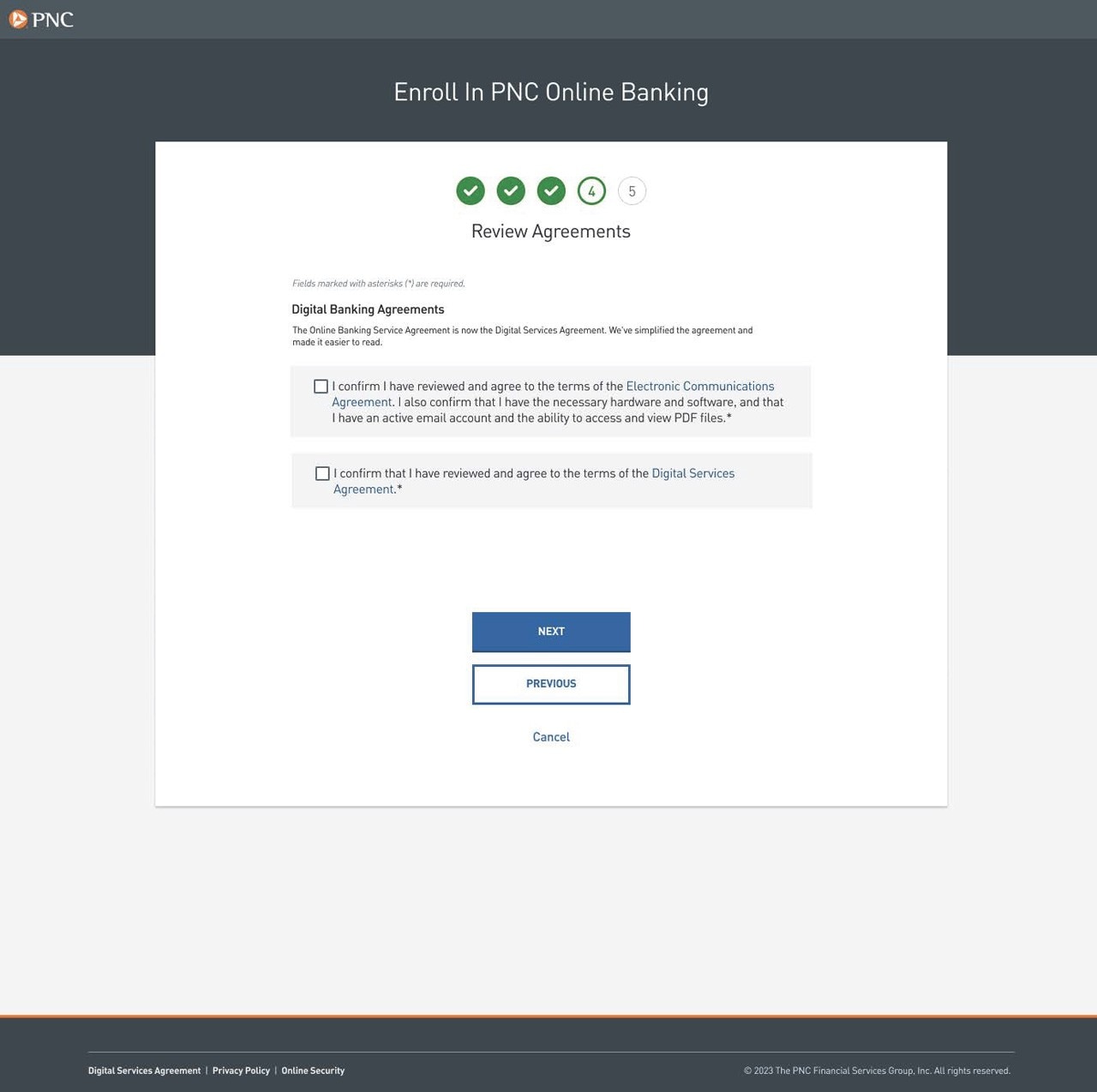
Step 5: Accept PNC's Digital Banking Agreements
- Check boxes to agree to PNC's Digital Banking Agreements.
- Select Next to accept.
Re-Enroll as a PNC Small Business Delegate
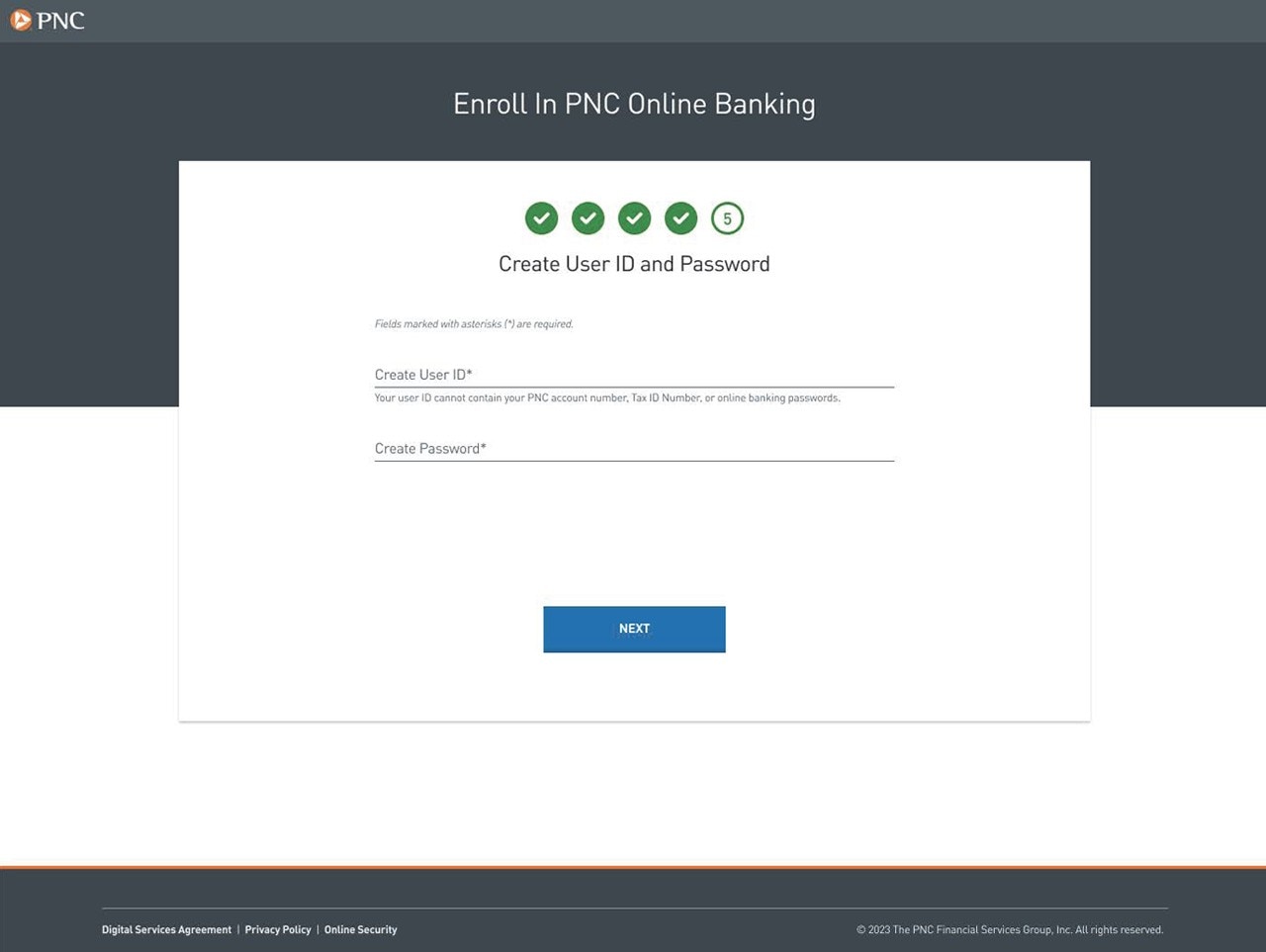
Step 6: Create New Credentials
- Create User ID.
- Create Password and re-type it to confirm.
- Select Next.
- On the Enrollment Complete page that appears, select Sign On
Note: After enrollment, delegates can manage their contact information by selecting the profile and settings icon and choosing Profile.
Delegates will login using the newly created username and password.
If personal accounts were previously delegated to you, you will no longer be able to access these accounts in Online Banking.
- Enter Credentials
- Start Enrollment
- Verify ID
- Enter Personal Information
- Accept Terms and Conditions
- Create New Credentials