









Zelle® should only be used to send or receive money with people you know and trust. Before using Zelle® to send money, you should confirm the recipient's email address or U.S. mobile phone number. Neither PNC nor Zelle® offers purchase protection for payments made with Zelle® – for example, if you do not receive the item you paid for, or the item is not as described or as you expected. To send or receive money with Zelle®, both parties must have an eligible checking or savings account at a participating financial institution in the U.S. Transactions typically occur in minutes between enrolled users. If the recipient has not enrolled, the payment will expire after 14 calendar days. See the PNC Zelle Terms of Use for additional terms and conditions. Use of Zelle® is subject to and conditional upon adherence to the terms and conditions of the PNC Zelle® Terms of Use.
PNC together with Zelle®
With Zelle® in the PNC Mobile app, you can easily send and receive money with people you know and trust.[1,2]
Why Should You Use Zelle®?
Zelle® is a fast, easy, and free[2] way to send and receive money with friends, family, and others you know and trust.
Get Started
Before you can use Zelle® with PNC, you will need:
- Sign in to the PNC Mobile app.
- Select Pay & Transfer in the bottom navigation menu bar, then select Send Money with Zelle®.
- Read the messages on the Zelle® enrollment screens and select Get Started.
- After reading the Terms of Use, select Agree.
- Select an enrollment method, such as a U.S. mobile number and/or an email address. You may be asked to verify your email address and/or U.S. mobile number.
- If you're already enrolled with Zelle® at a different financial institution, follow the prompts to transfer your mobile number or email address to use with Zelle® at PNC instead.
- Select the PNC account you want to use with Zelle® for sending and receiving payments.
- Review your information to make sure everything’s correct, then select Submit.
Your Zelle® account, U.S. mobile number and email address can all be updated any time in Zelle® Settings.
That’s it! Now you’re ready to use Zelle® with people and businesses you know and trust!
Zelle® Fast Facts
What is Zelle®?
What are the benefits of using Zelle®?
How to avoid scammers when using Zelle®
How can I protect my money while using Zelle®?

Your Guide to Using Zelle®
Visit pnc.com/ZelleGuide for step-by-step instructions on how to Enroll with Zelle®, Send, Request and Receive Money, Split an Expense, and Use Zelle® QR Codes.
Zelle® Features
Zelle® Ready Contacts
With Zelle® Ready Contacts, it's easy to see which of your contacts are enrolled with Zelle®.
Zelle® QR Codes
With Zelle® QR codes, it's even easier to send and receive money with Zelle® in the PNC Mobile app.
Zelle® Widgets
What's a Zelle® widget, and why would I want one?
(HINT: Send and request money faster with a Zelle® widget from PNC.)
How to Safely Use Mobile Payment Apps & Services
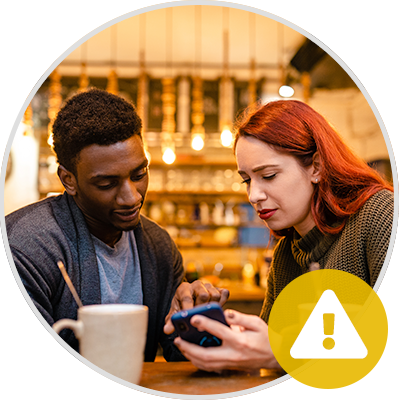
Review the videos on pnc.com/ZelleVideos to learn more about how to use Zelle® safely.
If you suspect you received a fraudulent text, email, or phone call that appears to be from PNC Bank:
Do NOT respond. Do NOT click on any links. Do NOT provide any personal information. Forward the email or a screenshot of the text message to PNC Bank: abuse@pnc.com.
Then, delete the email or text message.